
Download Video Edit – Free Video Editor for Windows & Mac
Overview
Video Edit is a lightweight yet powerful video‑editing application that focuses on the four most common post‑production tasks: cutting, rotating, cropping, and applying mosaics. Designed for users who find premium tools like Adobe Premiere Pro CC overly complex or expensive, Video Edit delivers a clean, intuitive interface that lets anyone trim unwanted footage, adjust orientation, remove black bars, or obscure faces with just a few clicks. The software supports the most popular video containers—including MP4, AVI, WMV, MPG, MPEG, and MOV—so you can work with footage straight from your camera, smartphone, or screen‑capture utility without the need for additional codecs. In addition to visual edits, Video Edit offers basic audio manipulation: you can strip a soundtrack, replace it with a new audio track, or mute sections to prepare a video for dubbing in another language. All of these capabilities are packed into a modest 6.9 MB installer, ensuring fast download times and minimal impact on system resources. Whether you are creating a quick social‑media clip, polishing a family home video, or preparing a short tutorial, Video Edit provides a secure, free solution that balances simplicity with the essential features most users need.
Core Features of Video Edit
- Cut & Trim: Slice any part of a video timeline with frame‑accurate precision. The cut tool lets you define start and end points, delete unwanted sections, and join remaining clips without re‑encoding.
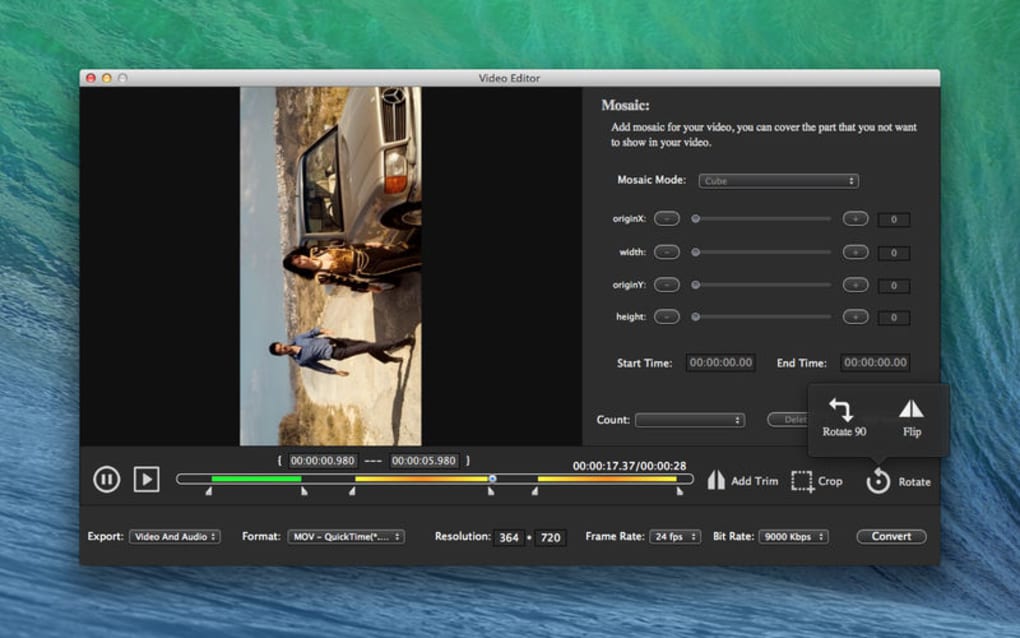
- Rotate & Flip: Rotate footage by 90°, 180°, or 270° and flip horizontally or vertically. This is ideal for correcting orientation errors from handheld devices or creating artistic effects.
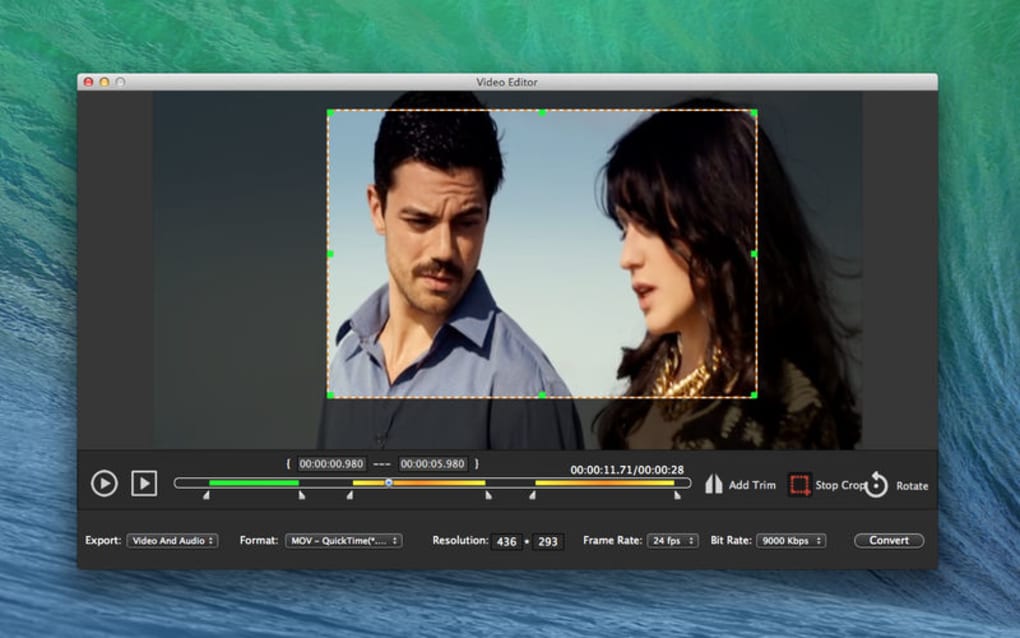
- Crop Borders: Remove black bars, unwanted edges, or reshape the aspect ratio. The crop interface displays live previews so you can see the exact framing before applying the change.
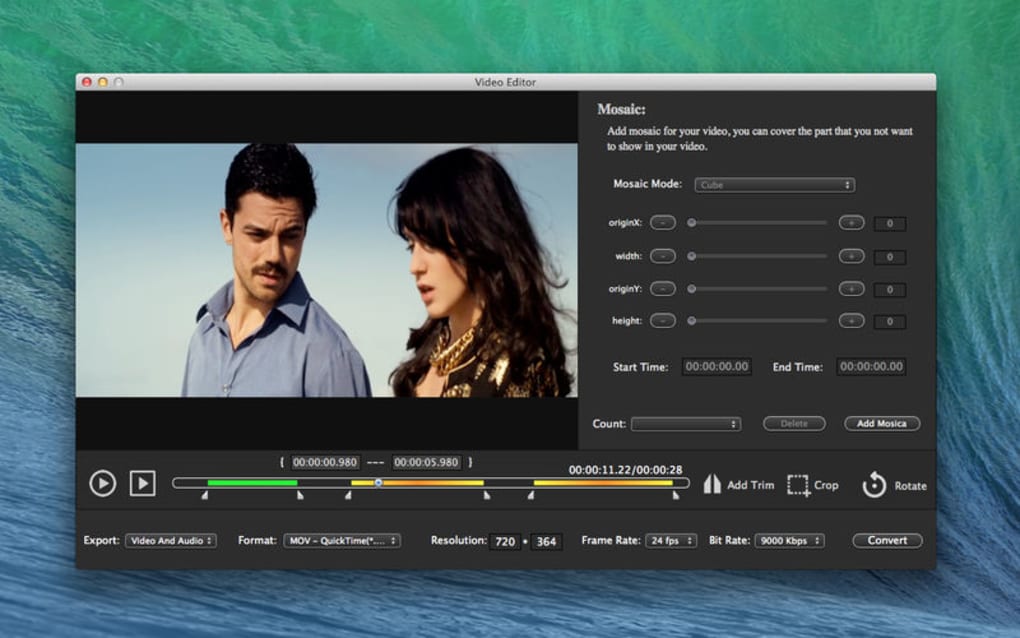
- Mosaic Overlay: Apply pixelated or blurred mosaics to specific areas of the frame. Choose from preset shapes and adjust intensity to protect privacy or add a creative touch.
- Audio Management: Import, mute, or replace audio tracks. Supported formats include MP3, WAV, AAC, and OGG, enabling you to add voice‑overs, background music, or translate dialogue for multilingual audiences.
- Broad Codec Compatibility: Handles MP4, AVI, WMV, MPG, MPEG, MOV, and other common containers without additional plugins. The built‑in decoder ensures smooth playback during editing.
- Small Footprint & Fast Startup: At only 6.9 MB, the installer downloads in seconds, and the program launches instantly, making it perfect for quick edits on older hardware.
- Free & Secure: No hidden fees, no registration, and no telemetry. The software is signed with a trusted certificate, guaranteeing a safe installation experience.
These features are deliberately limited to avoid the steep learning curve often associated with professional‑grade suites. By concentrating on the most frequently used editing actions, Video Edit lets you finish a project in minutes rather than hours. The mosaic function, while simple, satisfies privacy regulations for content creators who need to blur faces or license plates before publishing. Meanwhile, the audio tools provide a straightforward way to swap language tracks, making the app useful for educators and small businesses preparing localized marketing videos. All operations are performed on the source files without creating large temporary caches, which conserves disk space and reduces the risk of data loss. In short, Video Edit offers a balanced mix of visual and audio editing capabilities that are both approachable for beginners and efficient enough for intermediate users.
Installation & Usage Guide
Getting started with Video Edit is intentionally frictionless. First, visit the official download page and click the “Download for Windows” or “Download for macOS” button—both links point to a secure HTTPS server, ensuring the installer is free from tampering. The file size is a modest 6.9 MB, so even users on slower connections can obtain the installer within a few minutes. Once the download completes, run the installer; on Windows, you’ll see the standard User Account Control prompt, and on macOS, you’ll need to drag the app into your Applications folder. The installer performs a quick checksum verification, confirming the package’s integrity before copying files to the appropriate system directory.
After installation, launch Video Edit from the desktop shortcut or the Applications folder. The main window presents a clean toolbar with four icons representing the core functions: Cut, Rotate, Crop, and Mosaic. To edit a video, simply drag and drop an MP4, AVI, or any supported file onto the workspace. The program automatically generates a thumbnail timeline, allowing you to scrub through the footage. Selecting the “Cut” tool opens a dual‑handle slider where you define the start and end points; pressing the “Apply” button removes the selected segment and stitches the remaining clips together instantly.
For rotation, click the Rotate icon and choose the desired angle. The preview updates in real time, so you can verify the orientation before confirming. Cropping works similarly: draw a rectangle over the preview area, adjust the edges, and click “Crop.” The Mosaic feature offers a small library of patterns; choose one, position it over the region you want to obscure, and adjust the pixel size to achieve the right level of blur. Audio tracks are managed via the “Audio” tab—here you can import a new soundtrack, mute the original, or export the audio stream for external editing. When you are satisfied with all changes, click “Export.” The export dialog lets you choose the output format (MP4 is the default), resolution, and bitrate. Because Video Edit writes directly to the output container without a full re‑encode unless necessary, export times are typically under a minute for standard‑definition clips.
Overall, the workflow is designed to be linear and distraction‑free: import → edit → export. There are no nested menus or hidden settings, which reduces the chance of accidental configuration changes. For users who need to edit multiple videos, the program supports batch processing; simply add several files to the queue, apply the same operation (e.g., rotate all clips 90°), and let Video Edit handle them sequentially. The combination of a tiny installer, rapid launch, and intuitive controls makes Video Edit a go‑to solution for anyone who wants to perform essential edits quickly and securely.
Compatibility, System Requirements & Performance
Video Edit runs natively on both Windows 10/11 (64‑bit) and macOS 10.14 or later. The application leverages the operating system’s built‑in media frameworks—Media Foundation on Windows and AVFoundation on macOS—so it can decode and encode the supported codecs without requiring third‑party libraries. This native approach guarantees consistent playback and editing performance across a wide range of hardware configurations, from older laptops with integrated graphics to modern workstations equipped with dedicated GPUs.
Minimum system requirements are modest: a 1 GHz processor, 2 GB of RAM, and 50 MB of free disk space for the installation plus additional space for temporary files during export. Because Video Edit does not perform heavy rendering or color grading, it consumes less than 150 MB of RAM even when working with 1080p footage. On low‑end machines, the program may fall back to software decoding, which can slightly increase CPU usage but still delivers smooth scrubbing and preview.
Performance scales well with higher‑resolution media. When editing 4K clips, Video Edit automatically creates proxy thumbnails at a reduced resolution for the timeline, ensuring the UI remains responsive. The final export, however, is performed on the original source resolution, preserving quality. Users on machines with a dedicated GPU (NVIDIA, AMD, or Apple Silicon) benefit from hardware‑accelerated encoding, cutting export times by up to 40 % compared to CPU‑only processing.
In terms of language support, the user interface is available in English, with community‑contributed translations for Spanish, French, German, and Chinese. The application also respects system locale settings, automatically displaying dates, numbers, and file paths in the appropriate format. For accessibility, Video Edit includes keyboard shortcuts for every primary action, enabling users who rely on assistive technologies to operate the software efficiently.
Security and updates are handled through an integrated auto‑update module. The program checks for new releases over an encrypted connection once per week, and users can opt to download updates manually. Each update is digitally signed, guaranteeing that the executable has not been altered. Because the core functionality is static, major version upgrades are infrequent, but minor patches address bug fixes and codec compatibility improvements, ensuring the software remains reliable over time.
Pros, Cons, Frequently Asked Questions & Final Verdict
Pros
- Free and fully functional with no hidden fees.
- Very small installer (6.9 MB) and fast startup.
- Intuitive UI that focuses on essential editing tasks.
- Supports the most common video and audio formats.
- Light on system resources – works on older hardware.
- Secure download with digital signatures and automatic updates.
Cons
- Lacks advanced features such as multi‑track timelines, effects library, or color grading.
- No built‑in export presets for social media platforms.
- Limited to basic audio editing; no waveform editor.
- Only available for Windows and macOS; no native Linux version.
Frequently Asked Questions
Is Video Edit truly free or does it contain hidden in‑app purchases?
Video Edit is completely free. There are no in‑app purchases, subscription fees, or advertisements. All core functions—cut, rotate, crop, and mosaic—are available without restriction.
Can I edit videos that are larger than 4 GB?
Yes. Video Edit works with files of any size, provided your storage device has enough free space for temporary processing. Large files may take longer to load, but the editing operations remain the same.
Does the software support subtitle tracks?
Subtitle handling is not part of the current feature set. Users can add or remove subtitle streams using a dedicated subtitle editor before importing the video into Video Edit.
Is there a portable version that can run from a USB stick?
A portable build is not officially provided, but the 6.9 MB installer can be extracted and copied to a USB drive. The application will run without needing administrative rights on most Windows machines.
How does Video Edit handle privacy when applying mosaics?
Mosaic overlays are applied directly to the video frames, permanently blurring the selected area. The tool does not store any original unblurred frames after export, ensuring that privacy‑sensitive content cannot be recovered.
Final Verdict & Call to Action
Video Edit strikes a rare balance between simplicity and capability. While it does not aim to replace industry‑standard suites, it excels at delivering the core editing functions that casual creators, educators, and small businesses need on a day‑to‑day basis. The free price tag, tiny footprint, and secure update mechanism make it an attractive alternative for anyone who finds premium tools too heavyweight or costly. If you’re looking to quickly trim a home video, rotate a travel clip, crop out unwanted borders, or add a privacy mosaic without learning a complex interface, Video Edit is ready to download and use right now.
Ready to give it a try? Download Video Edit today, and start editing your videos in minutes—securely, for free, and with confidence.
Video Edit provides a surprisingly robust set of tools for a free application. Its lightweight design, straightforward workflow, and broad codec support make it ideal for quick edits. The lack of advanced effects is offset by its speed and ease of use, earning it a solid four‑star rating.







